Menu
This section describes how to create menubars and popup menus.
Menus are widgets as well. We add the following code to the App() class.
Creating the menu bar:
menubar = tk.Menu(root)
Adding the menu bar to the root window:
root['menu'] = menubar
Placing the menu bar on a menus stack for accessing to the menu items later on.
menus[0]is always the menu barmenus[1]is the first menu item createdmenus[-1]is the last menu item created
This initializes the menu stack:
menus = [menubar]
Adding a menu bar
The Menu() class is defined like this:
class Menu(tk.Menu):
    """Add a Menu() node to which a menu Item() can be attached."""
    def __init__(self, label, id=0, **kwargs):
        super(Menu, self).__init__(App.menus[0], **kwargs)
        App.menus[id].add_cascade(menu=self, label=label)
        App.menus.append(self)
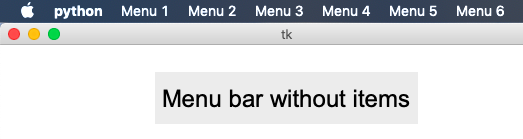
To create a menubar we just can instantiate a series of Menu() widgets:
for i in range(1, 7):
    Menu('Menu ' + str(i))
"""Add menus to the menubar."""
from tklib import *

class Demo(App):
    def __init__(self):
        super().__init__()
        Label("Menu bar without items", font="Arial 24")

        for i in range(1, 7):
            Menu('Menu ' + str(i))

Demo().run()
Adding items to the menu bar
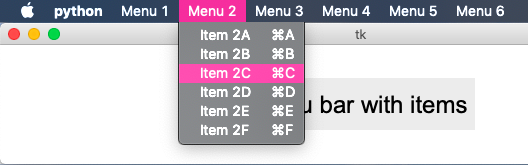
To add items to a menu bar, we first call Menu() and then Item() for each
menu item to add to the menu:
The Item object has the following parameters:
- label: the text to appear in the menu item
- cmd: an executable string
- acc (accelerator): a shortcut composed of Control/Command - (hyphen) and a lower-case letter
The following exemple adds 6 items to the 6 menus previously created:
for i in range(1, 7):
    Menu('Menu ' + str(i))
    for c in "ABCDEF":
        label = 'Item {}{}'.format(i, c)
        cmd = 'print("{}")'.format(label)
        Item(label, cmd, 'Command-{}'.format(c.lower()))
"""Add menus and items."""
from tklib import *

class Demo(App):
    def __init__(self):
        super().__init__()
        Label("Menu bar with items", font="Arial 24")

        for i in range(1, 7):
            Menu('Menu ' + str(i))
            for c in "ABCDEF":
                label = 'Item {}{}'.format(i, c)
                cmd = 'print("{}")'.format(label)
                Item(label, cmd, 'Command-{}'.format(c.lower()))

Demo().run()
Menus with sub-menus
Each new menu can be attached to the menu bar (default) or can be attached
to an existing menu. The parameter id.
The following code adds a new submenu at the end of the previously created menu. Then it adds 3 subitems, and finally an item which is directly attached to the parent Menu():
for i in range(1, 7):
    Menu('Submenu in {}'.format(i), id=i)
    for c in 'XYZ':
        Item('Item ' + c, 'print(123)', 'Control-' + c.lower())
    Item('Add Item to {}'.format(i), id=i)
This is the Menu class definition.
class Menu(tk.Menu):
    """Add a Menu() node to which a menu Item() can be attached."""

    def __init__(self, label='Menu', id=0, **kwargs):
        super(Menu, self).__init__(App.menus[0], **kwargs)
        App.menus[id].add_cascade(menu=self, label=label)
        App.menus.append(self)
This is the Item class definition.
class Item(Callback):
    """Add a menu item to a Menu() node. Default is the last menu (id=-1)."""

    def __init__(self, label, cmd='', acc='', id=-1, **kwargs):
        self.cmd = cmd
        if isinstance(cmd, str):
            cmd = self.cb
        if acc != '':
            key = '<{}>'.format(acc)
            App.root.bind(key, self.cb)

        if label == '-':
            App.menus[id].add_separator()
        elif label[0] == '*':
            App.menus[id].add_checkbutton(
                label=label[1:], command=cmd, accelerator=acc, **kwargs)
        elif label[0] == '#':
            App.menus[id].add_radiobutton(
                label=label[1:], command=cmd, accelerator=acc, **kwargs)
        else:
            App.menus[id].add_command(
                label=label, command=cmd, accelerator=acc, **kwargs)
"""Insert items at a specific index position."""
from tklib import *

class Demo(App):
    def __init__(self):
        super().__init__()
        Label("Insert items at specific index.", font="Arial 24")

        Menu('Menu')
        for i in range(5):
            Item('Item {}'.format(i), cmd=lambda : print(i), acc='Command-'+str(i))

        Item('Item', 'print("Left")', acc='Command-Left')
        Item('Item', 'print("Up")', acc='Command-Up')
        Item('Item', 'print("Right")', acc='Command-Right')
        Item('Item', 'print("Down")', acc='Command-Down')

        App.menus[-1].insert(2, 'command', label='Extra item')
        App.menus[-1].insert(100, 'command', label='Extra item 100')
        App.menus[-1].insert(10, 'command', label='Extra item 10')

        Menu('Window', name='window')
        Menu('Help', name='help')

Demo().run()
menu6.py
6
Checkbuttones and radiobuttons
—————————
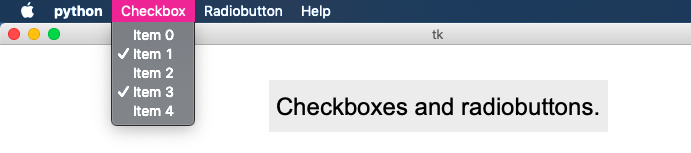
Items can be configured as checkboxes or radiobuttons. The first symbol of the label decides if a command, ceckbox or radiobuttion is:
- asterisk (*) : make the item a checkbox
- hashtag (#) : make the item a radiobutton
This is the result:
"""Menus with items, separators, checkboxes and radiobuttons."""
from tklib import *

class Demo(App):
    def __init__(self):
        super().__init__()
        Label("Checkbuttones and radiobuttons.", font="Arial 24")

        Menu('Checkbutton')
        for i in range(5):
            Item('*Item {}'.format(i))

        Menu('Radiobutton')
        radio = tk.StringVar()
        for i in range(5):
            Item('#Item {}'.format(i), variable=radio)

        Menu('Help', name='help')

Demo().run()
menu6.py
6
Context menu
————
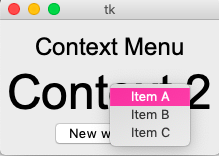
The same Menu and Item widgets can be used to create context menus.
Contrary to the Menu which is attached to the root window, the ContextMenu
is attached to a specific widget. When the widget is clicked, a callback function
is called.
The Menu.post() method is used to open the context menu at the current
cursor position:
class ContextMenu(tk.Menu):
    def __init__(self, widget):
        """Create a context menu attached to a widget."""
        super(ContextMenu, self).__init__(widget)
        App.menus.append(self)

        if (App.root.tk.call('tk', 'windowingsystem') == 'aqua'):
            widget.bind('<2>', self.popup)
            widget.bind('<Control-1>', self.popup)
        else:
            widget.root.bind('<3>', self.popup)

    def popup(self, event):
        """Open a popup menu."""
        self.post(event.x_root, event.y_root)
        return 'break'
"""Create a context menu."""
from tklib import *

class Demo(App):
    def __init__(self):
        super().__init__()
        l1 = Label("Context Menu", font="Arial 24")
        l2 = Label("Context Menu 2", font="Arial 48")

        ContextMenu(l1)
        Item('Item 1', 'print(1)')
        Item('Item 2', 'print(2)')
        Item('Item 3', 'print(3)')

        ContextMenu(l2)
        for c in 'ABC':
            Item('Item ' + c)

        ContextMenu(App.root)
        Item('Cut', 'print("Cut")')
        Item('Copy', 'print("Copy")')

Demo().run()
Insert an item at a specific position
Normally we build menus in order. We create a Menu() object, and then we
add the Item() objects subsequently. With the insert method it is possible
to attach an item anywhere in the existing menu.
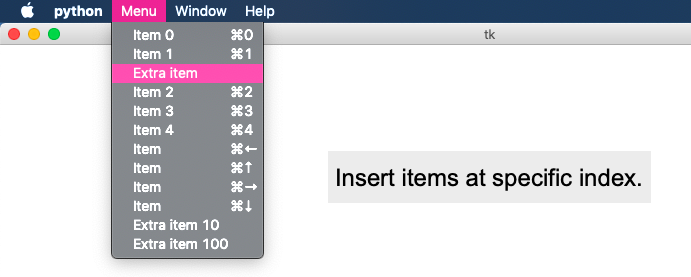
This inserts an new command at index=2:
App.menus[-1].insert(2, 'command', label='Extra item')
This inserts a new command at the end:
App.menus[-1].insert(100, 'command', label='Extra item 100')
App.menus[-1].insert(10, 'command', label='Extra item 10')
"""Insert items at a specific index position."""
from tklib import *

class Demo(App):
    def __init__(self):
        super().__init__()
        Label("Insert items at specific index.", font="Arial 24")

        Menu('Menu')
        for i in range(5):
            Item('Item {}'.format(i), cmd=lambda : print(i), acc='Command-'+str(i))

        Item('Item', 'print("Left")', acc='Command-Left')
        Item('Item', 'print("Up")', acc='Command-Up')
        Item('Item', 'print("Right")', acc='Command-Right')
        Item('Item', 'print("Down")', acc='Command-Down')

        App.menus[-1].insert(2, 'command', label='Extra item')
        App.menus[-1].insert(100, 'command', label='Extra item 100')
        App.menus[-1].insert(10, 'command', label='Extra item 10')

        Menu('Window', name='window')
        Menu('Help', name='help')

Demo().run()
Different menus for each window
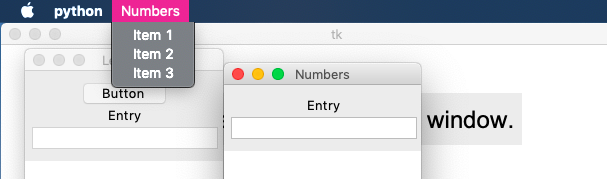
If no new menu is defined for a new window, the root menu will be used for the new window. If a new menu is added after the window is created, this window will have it’s own menu. Whenever a window becomes active, it will display it’s own menu bar.
This shows the creation of two new windows with their different menubars:
Window("Letters")
Button()
Entry()
Menu1()
Menu('Help', name='help')

Window("Numbers")
Entry()
Menu2()
"""Insert different menus for each window."""
from tklib import *

def Menu1():
    Menu('Letters')
    for c in 'ABC':
        Item('Item ' + c)

def Menu2():
    Menu('Numbers')
    for c in '123':
        Item('Item ' + c)

class Demo(App):
    # constructor
    def __init__(self):
        super().__init__()
        Label("Different menus for each window.", font="Arial 24")

        Menu1()
        Menu2()

        Window("Letters")
        Button()
        Entry()
        Menu1()
        Menu('Help', name='help')

        Window("Numbers")
        Entry()
        Menu2()

Demo().run()
Creating new widgets from the menu
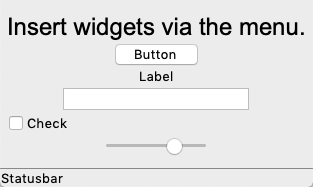
The next example shows how to add widgets dynamically.
The Widget menu contains specific widgets as items which are
added to the current window:
Menu('Widgets')
Item('Button', 'Button()', 'Command-b')
Item('Label', 'Label()', 'Command-l')
Item('Entry', 'Entry()', 'Command-e')
Item('Radiobutton', 'Radiobutton()', 'Command-r')
Item('Checkbutton', 'Checkbutton()', 'Command-k')
Item('Canvas', 'Canvas()', 'Command-c')
Item('Listbox', 'Listbox(height=5)', 'Command-i')
Item('Scale', 'Scale()', 'Command-s')
Item('Text', 'Text(width=30, height=5)', 'Command-t')
"""Insert widgets via a menu."""
from tklib import *

class Demo(App):
    def __init__(self):
        super().__init__()
        Label("Insert widgets via the menu.", font="Arial 24")

        Menu('Widgets')
        Item('Button', 'Button()', 'Command-b')
        Item('Label', 'Label()', 'Command-l')
        Item('Entry', 'Entry()', 'Command-e')
        Item('Radiobutton', 'Radiobutton()', 'Command-r')
        Item('Checkbutton', 'Checkbutton()', 'Command-k')
        Item('Canvas', 'Canvas()', 'Command-c')
        Item('Listbox', 'Listbox(height=5)', 'Command-i')
        Item('Scale', 'Scale()', 'Command-s')
        Item('Text', 'Text(width=30, height=5)', 'Command-t')

Demo().run()
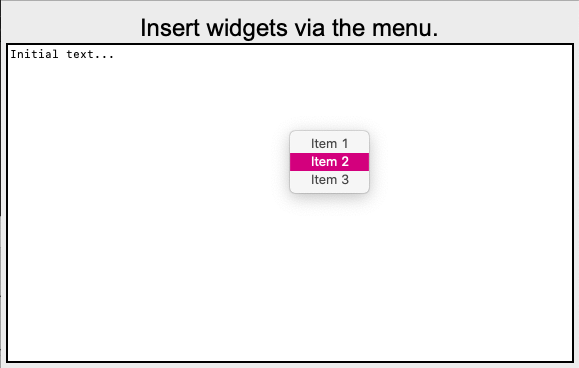
Insert a popup menu
"""Insert a pop-up menu."""
from tklib import *

class Demo(App):
    def __init__(self):
        super().__init__()
        Label("Insert widgets via the menu.", font="Arial 24")

        text = Text('Initial text...')

        ContextMenu(text)
        Item('Item 1', 'print(1)')
        Item('Item 2', 'print(2)')
        Item('Item 3', 'print(3)')

Demo().run()